

The user guide
Version 1.0, 29 October 2026. Written for app v3.11.3.
Roughneck is sales software for oilfield service companies. It reads what the state oil and gas regulators publish, turns each filing into a call worth making, and carries the account from the first call to a signed quote and a kept customer.
This guide goes screen by screen: Today, Filings, Operators, Calendar, Events, Quotes, Where it stands (on every account), My Customers, Territory, Settings and Help. The last two sections cover The Handshake add-on and the nine reads.
On a phone, the menu opens from the Menu button, or by swiping from the left edge. The three dots by your name, at the foot of the menu, open Profile, Settings, Team, Verify a document and Help.
The words on the screens and in this guide are the same. An account is a company you are going after or working with. A customer is one that gave you the work. The stages are Cold, Warm, Hot and Won, and they move by themselves.
Roughneck is run by Bootstrap Digital, Inc. (in formation), doing business as Roughneck.
Today
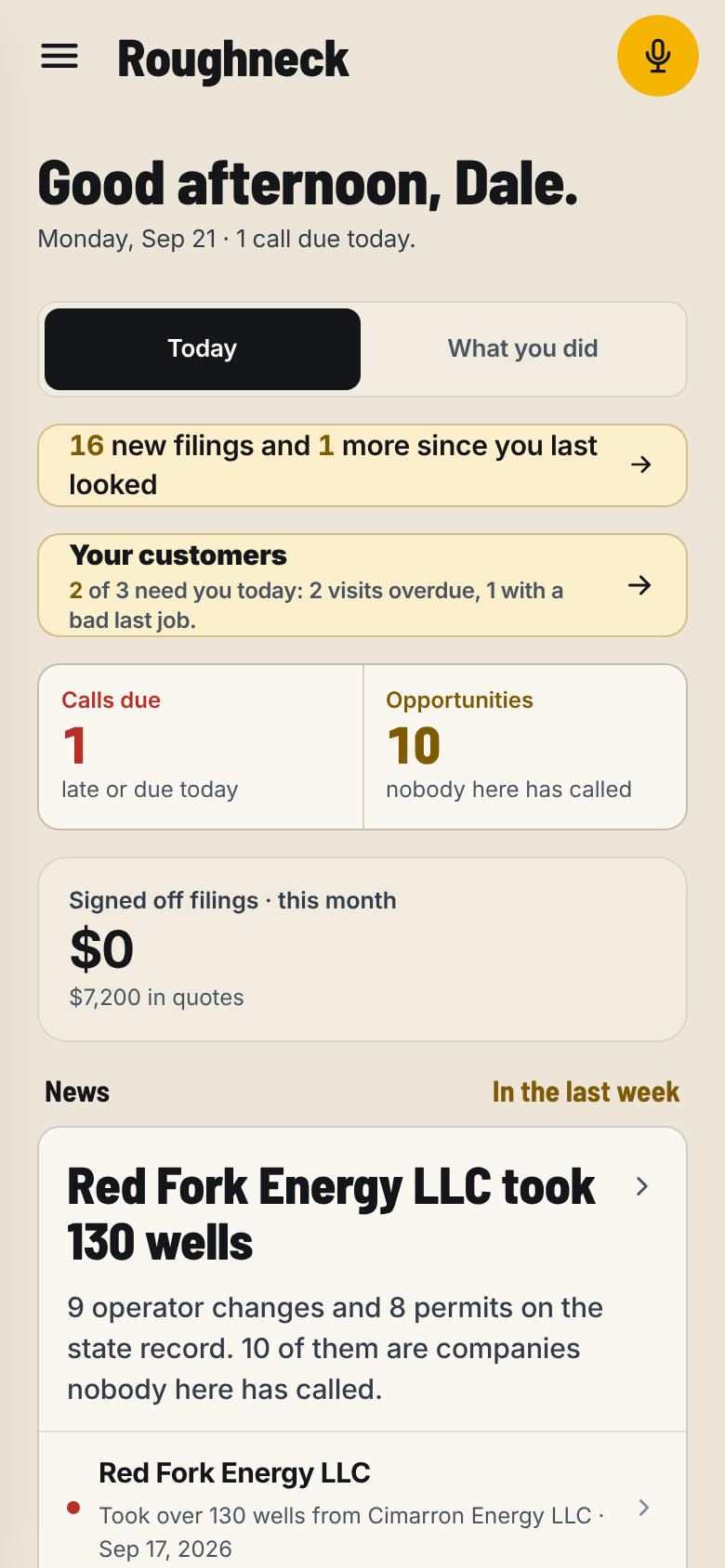
Today is the screen the app opens on. It shows what the state filed in your states, the calls the cadence says are due, and the next few moves worth making.
What is on it, top to bottom
- The line under your name says how many calls are due today.
- Today | What you did. Tap What you did for your numbers: calls due, calls done, opportunities, and what you signed this month.
- New since you last looked. Tap it to see the filings and everything else that happened.
- Your customers, if you have any: how many need you today (a visit overdue, sold wells, paper running out).
- The morning strip. Calls due, Opportunities in your state, prices, and Rigs this week. Tap Calls due to start calling. Tap Opportunities to open Filings.
- News. The operator changes and permits on the state record this week.
- Start calling. Works the list top to bottom.
- Power hour: 5 calls. The same run, cut to five accounts and timed.
- Up next. Up to three moves ranked for you: a step you wrote, a meeting with no day on it, a quote that has sat too long, a filing with days left in its window.
- The pull line at the foot says which state records you have and when they were read.
Work your calls
- Tap Start calling. The first account due opens.
- Read the card. Tap Call (or Text, Email, LinkedIn). The phone dials from your own phone.
- On the call, the script walks you through it: Open with the reason you called, Find this out while you have them on the line, Ask for a meeting. Tap Said it to note their answer, Next line to move on.
- Tap The call's over.
- Under How did it go?, tap one: Answered, No answer, Not their call, Set meeting or Number is dead. After Answered, pick Interested, Wants a number, Not now or Not interested.
- The app says when the account comes back. Tap Next call to keep going, or Finish the run.
Skip for now moves on without logging anything. End the run stops. Full record opens everything on the operator.
How an outcome sets the next date
At the Normal cadence:
| You tap | It comes back |
|---|---|
| No answer | Later the same day, or first thing the next working day if it is late |
| No answer, twice the same day | In 2 working days |
| Not their call | In 2 working days, to call the person who decides |
| Interested | In 2 working days, with something in hand |
| Wants a number | Same as Interested, and the quote opens now |
| Not now | In 30 days |
| Not interested | Parked for 90 days |
| Set meeting | Off the calling list. The meeting owns it |
| Number is dead | The number is struck; the account stays due today on its next route |
The eighth touch with no meeting, logged as No answer or Not their call, parks the account for 90 days. A parked account comes back on its own on its date. Bring it back now on the card brings it back today.
Settings, Your workday, How hard it pushes makes every window shorter (Hard) or longer (Easy). What that means today lists the days.
When the banner says the register has not refreshed
When the last pull of the state record is three or more days old, Today shows The register has not refreshed. What is already on your cards still stands; new filings may be missing. Check the date on a filing before you call it recent.
What you will not find here
- No autodialer. Every call is dialled from your own phone, one at a time.
- No call recording.
- No daily activity quota or a manager's activity report.
Filings
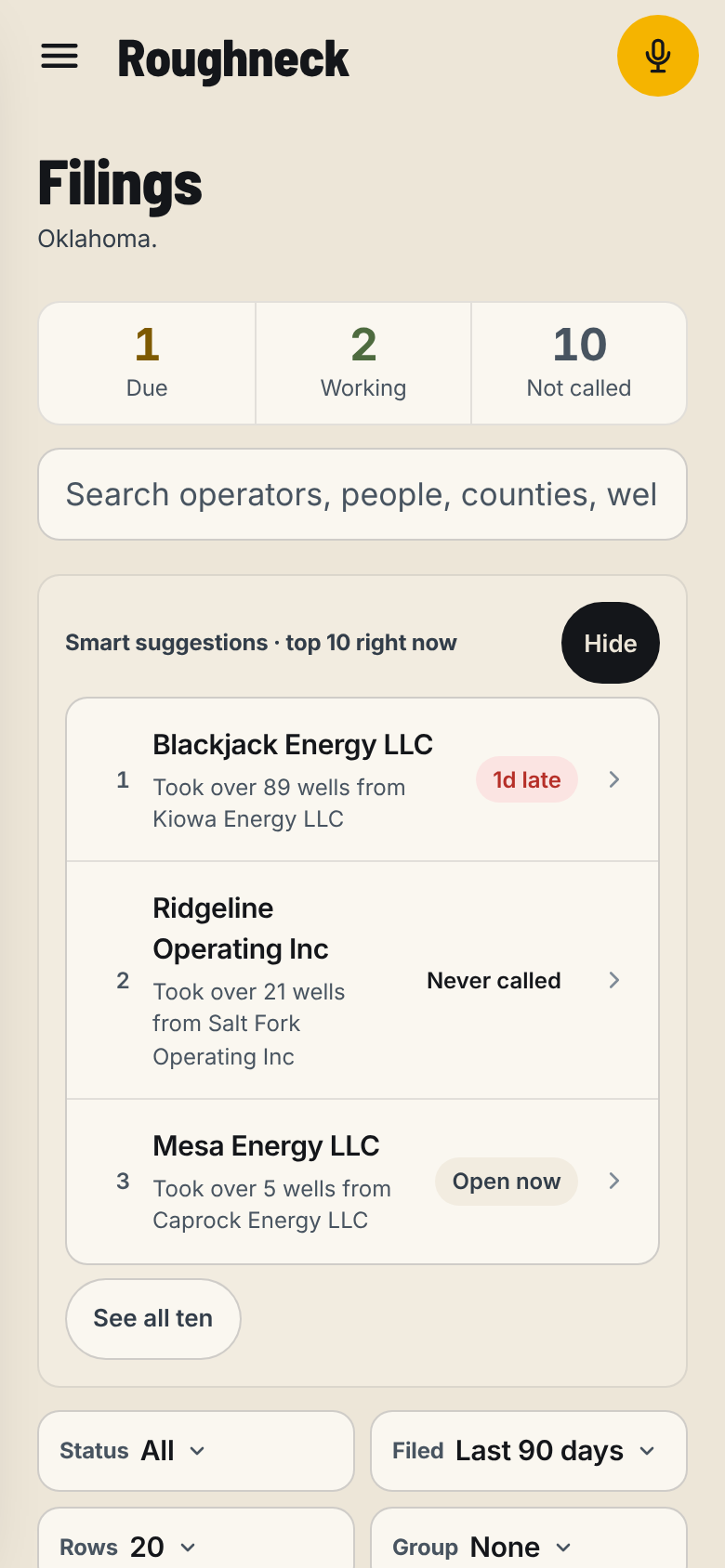
Filings is every operator on the state register in the states your shop has, with the permits, transfers and operator changes the state published. It is the list you call from when you want new work.
Read a row
Each row is one operator: the name, what it filed and when, its wells (permitted, taken over, fracked, and how they are drilled), how many times you have touched it, and how much of it you have read. The pill on the right says when it is due: Due today, 2d late, Never called, Parked.
The tiles at the top count Due, Working and Not called. The line at the foot says how many companies have a filing, of how many in the state.
Narrow the list
- State. Pick one state, or All states. Shown when your shop has two or more.
- Status. All, Due, Working, Know enough, Cold, Warm, Hot, Not called or Parked.
- Filed. The last 30, 60 or 90 days, or Custom dates.
- Wells. Horizontal, Directional, Vertical, Depth not filed. A directional shop starts with the verticals off. An account with no well data never drops off.
- Group. By county, by filing, or by size.
Find one
Type in Search operators, people, counties, wells. It finds a company, a person, a town, a phone, a county, a well name, an API number or a Texas permit number, in every state you have, whatever state is picked.
Work several at once
- Tick the box on each row you want.
- Tap Add to today's run to call them today, or Leave for a number of days to put them off.
Open a well
- Open the account. Under Their work, tap a well.
- The sheet shows what the state filed for it: lease, API, depth, type, status, locations.
- Surface location and Bottom hole open the spot on a map.
- In Texas, The permit on the Railroad Commission opens the permit on the state's own site. New Mexico and Colorado have their own link. Other states have no link yet.
Keep the permit and the plat with the well
- On the well, tap the state's permit link and save the permit and the plat from the state's page.
- Come back to the app. The state's papers says you are back.
- Tap Add permit or Add plat and pick the file (PDF, TIFF or photo, up to 15 MB).
- Tap View permit or View plat to see it. Open full size shows every page.
The files are private to your shop. Only the person who added a paper can remove it, from the viewer (Remove this permit, Remove this plat).
Add an operator that is not on the list
At the foot of Filings, tap Add an account that is not on this list. See Operators.
What you will not find here
- No contact lists to buy. Every name on the list is on the state's own register.
- No email addresses or phone numbers that the state did not file.
- No bulk email or mass text to the list.
Operators
Operators lists every company you are going after, and the people at them, whether or not the state filed anything lately. It is the directory; Filings is the work list.
Find a company or a person
- Tap Operators.
- Pick Companies or People at the top.
- Type in the search box. Search reaches every operator on the record, quiet ones included.
- Tap a row to open the account.
On People, the tiles show the names you hold, who decides, who you have met, and who is a customer. The warning card lists accounts with only one name on them.
Add an account
- On Filings, tap Add an account that is not on this list. Or on My Customers, tap Add potential.
- Pick A potential customer or A client.
- Type the company name. If the state record has it, tap Yes, that's them to link it, or No, keep it separate.
- Add who you deal with: name, phone, email, town. All optional.
- Tap Add as a potential customer (or Add to My Customers for a client).
A potential customer goes on Filings with a call clock; the first call is due in two working days. A client goes in My Customers with a visit clock.
What you can put on an account
Open the account. It has four sections: Now, Their work, The relationship and The record.
- Set meeting, a next step, Build a quote.
- People: Add someone at this account.
- Who runs their drilling, and who they use now.
- Notes: Add anything else worth keeping, then Save note.
- Fix what the state has wrong: the name, the right person, the kind of company.
What you will not find here
- No add button on Operators itself. Add from Filings or My Customers.
- No contact data bought from a vendor.
Calendar
The Calendar shows every call due, meeting set, next step, quote running out, visit and event, by day. Done items stay on their day, marked done.
See a day or the week
- Tap Calendar.
- With no day picked, the panel shows Your next week.
- Tap a day to see just that day. Press and hold a day for a quick look.
- The switch filters All, Meetings, Calls, Tasks or Other.
Put something on it
- Tap Put something on the calendar.
- Under What it is, pick Meeting, Call back or Next step.
- Pick When.
- Under For, type a company, a man or a town and tap the account. For a next step that is yours alone, tap No company, just for me.
- Tap the save button.
Work an item
Tap an item: Held it, Called, Mark it done, Move to…, Change it, Navigate or Delete it. Held it asks how it went and what is next.
Plan the week
Tap Plan my week. It lists customers due a visit, deals with no next date, and new filings near your stops. Tap a day on each and Book all.
Put it on your phone's calendar
- Sync to my phone's calendar downloads a calendar file with everything from today on. Your phone opens it into its own calendar. It is a copy: change a meeting here and sync again.
- Live link to my phone's calendar gives a link your phone checks on its own, about every hour. Tap Copy the link or Open on this phone and follow the steps for iPhone, Android or Outlook. The link works for 180 days. Anyone with the link can read your calendar; New link stops the old one.
What you will not find here
- No two-way sync. Changes on your phone's calendar do not come back into Roughneck.
- No shared team calendar.
Events
Events lists the oilfield events in your states: clay shoots, golf scrambles, fishing tournaments, boils, luncheons and shows. Each card has the date, the place, the price and the org's own page.
Find an event
Filter by Next (30 days to 12 months), Order (by date or nearest first), Show, State and Kind.
Go to one
- Tap Register. The org's own page opens; you sign up there.
- Come back to the app. It asks Did you register? Tap Yes, put it on my calendar.
Plan who you will find there
- Tap Who to meet there.
- Tap each account you mean to find.
- Tap Done. Today reminds you the morning of.
What you will not find here
- No tickets or payments. Those stay on the org's site.
Quotes
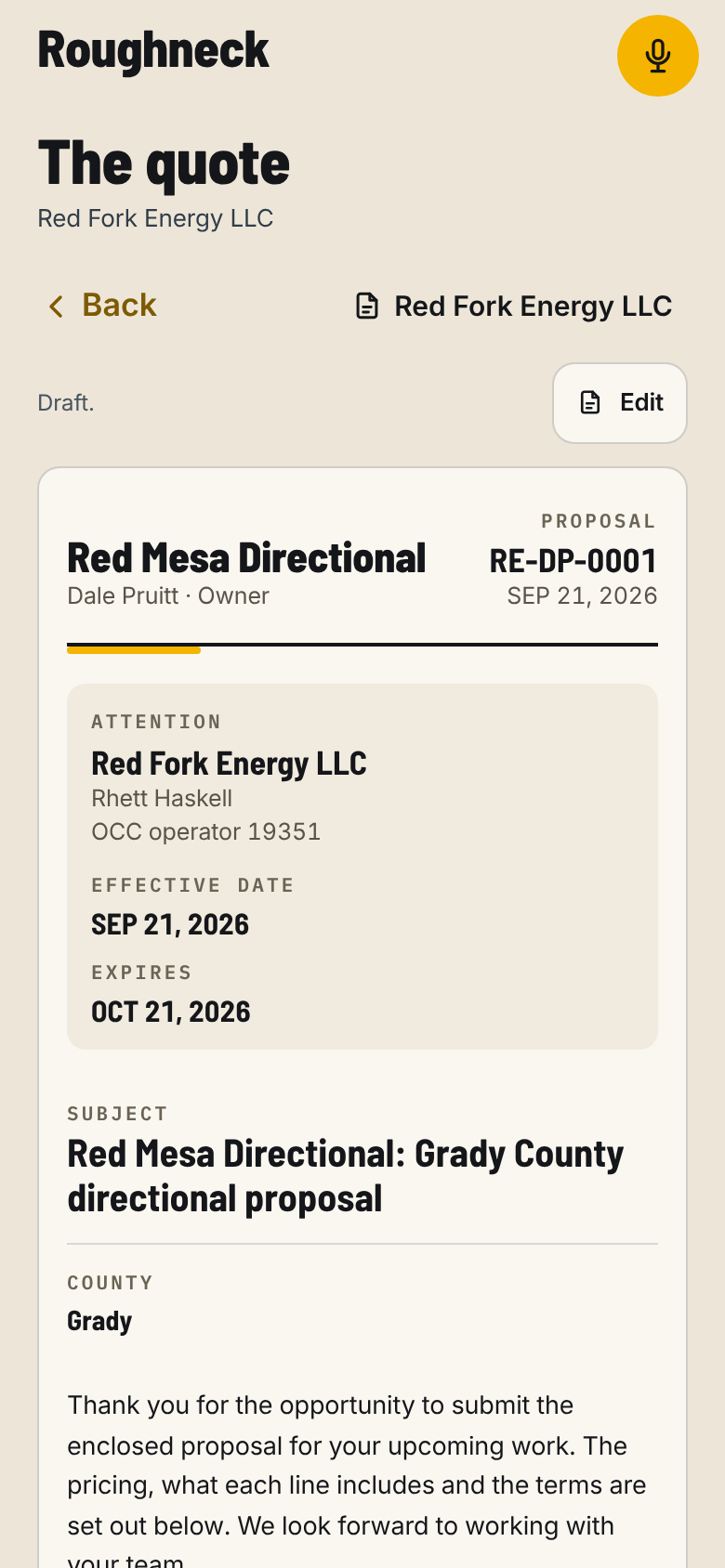
Quotes is where you build a proposal, sign your side and get the customer's signature on their own phone. Every number on the screen is counted off the quotes you wrote; nothing on it is typed in.
Start a quote
From an account:
- Open the account, then The relationship.
- Under Documents, tap Build a quote.
With The Handshake, the same button sits near the top of the card: Build a quote, or Quote the next job on a customer. If a draft is already started, it says Finish and the quote number.
From the Quotes screen:
- Tap Quotes in the menu.
- Tap Write a new quote.
- In Who is it for?, type a company, a man or a town, and tap the account. The filing fills the rest in.
From the calendar: when a call, step or to-do mentions a quote or a price, the item shows Write the quote for the company (or Open the quote for it, if a draft exists).
Price it
- Under Good for, in days, pick 15, 30, 45, 60 or 90.
- Fill in Subject and Attention (who signs it and their title).
- Under How you are pricing it, pick A job, with a total (quantities, rates and a total) or A rate sheet (rates only, no total).
- Under Commercial proposal, pick a Service type, then Add a service under it. Pick the service, then Priced per (per hour, per day, per foot, each, lump sum, cost plus and the rest). Put in the quantity and the rate.
- Open What this includes, one item a row to list what the line covers.
- Tap Add a service type for the next group. The chips under Quick add, what your shop sells add one in a tap.
- Fill Scope of work and Exclusions. Anything you leave empty stays off the paper.
- Under How it gets paid, tap a chip (Net 30, 50 / 50, Progress billing and others). It writes the sentence; change any word of it. Add Retainage or a Late fee if you charge one.
- Under How the customer says yes, pick They sign it or Their word is enough.
- More on the proposal holds Special provisions, Master service agreement and Terms and conditions.
- Tap See the document to read it the way the customer will.
Tap Save this as my defaults and the next quote starts with these service types, services, rates, scope and exclusions. Start over from my defaults puts them back.
Sign it and send it
- On the document, tap You sign. Put in your name and title, sign in the box with a finger, and tap Done signing. Tick Save it for next time. and after that signing is one tap.
- Tap Send signing link.
- Pick Text it, Email it or Copy the link. Your own text or mail app opens with the message written. You press send.
- The customer opens the link, reads the whole proposal and signs on their own phone. No app and no account for them.
- The panel The customer shows Sent, ID confirmed (if you asked for ID) and Signed. Tap Check again to look now.
If the customer signed before you did, tap You sign, then Send them their copy. That opens your mail app with the copy and its Document ID.
When they say yes
- They signed: tap They signed it. Book the job, then Yes, we won it. The account moves into My Customers and Won, and the job sheet asks when you are out there.
- They said yes but will not sign: tap Customer agreed, say how (Verbally, By email, In person, By text), who and when, then Mark it agreed. The account is won and the quote locks.
- You lost it: tap Lost this one, then Yes, mark it lost. It cannot be put back out after that, and it still counts on the board.
- Sent it some other way: Mark it sent starts the chase clock.
A signed quote is locked. To change anything, start a new quote.
Save as PDF
- On the document, tap Save as PDF.
- In a browser, the print sheet opens. On an iPhone, tap Share, then Save to Files.
- In the app on your home screen, the PDF is made on the phone and Your PDF is ready opens. Tap Save or share the PDF, or Open the PDF.
Bring in a quote made elsewhere
- On the Quotes screen, tap Bring in a quote made elsewhere and tap the company. Or on the account, tap Bring in a quote.
- Tap Attach the PDF or a photo of it.
- With The Handshake, pick Make it signable (it reads the quote and writes it up for both of you to sign; check every line against the original) or Just store it.
- When storing, pick Where it stands: Out with them, They agreed, no signature or Signed. Add the total.
- Tap Store it or Read it and write it up.
The file is kept where only your shop can open it.
Check a signed document
Every signed quote has an Audit trail with its Document ID and Document fingerprint (SHA-256). Anyone can check the code at roughneck.app/verify, or use Verify a document from the three dots by your name.
What you will not find here
- No stage you set by hand. Signing, agreeing or losing a quote moves the account.
- No bulk email of quotes. Each link goes out from your own phone, one at a time.
- No invoicing. Roughneck does the document the customer signs; your books stay where they are.
- No discount approval chain. You price it, you sign it.
Where it stands
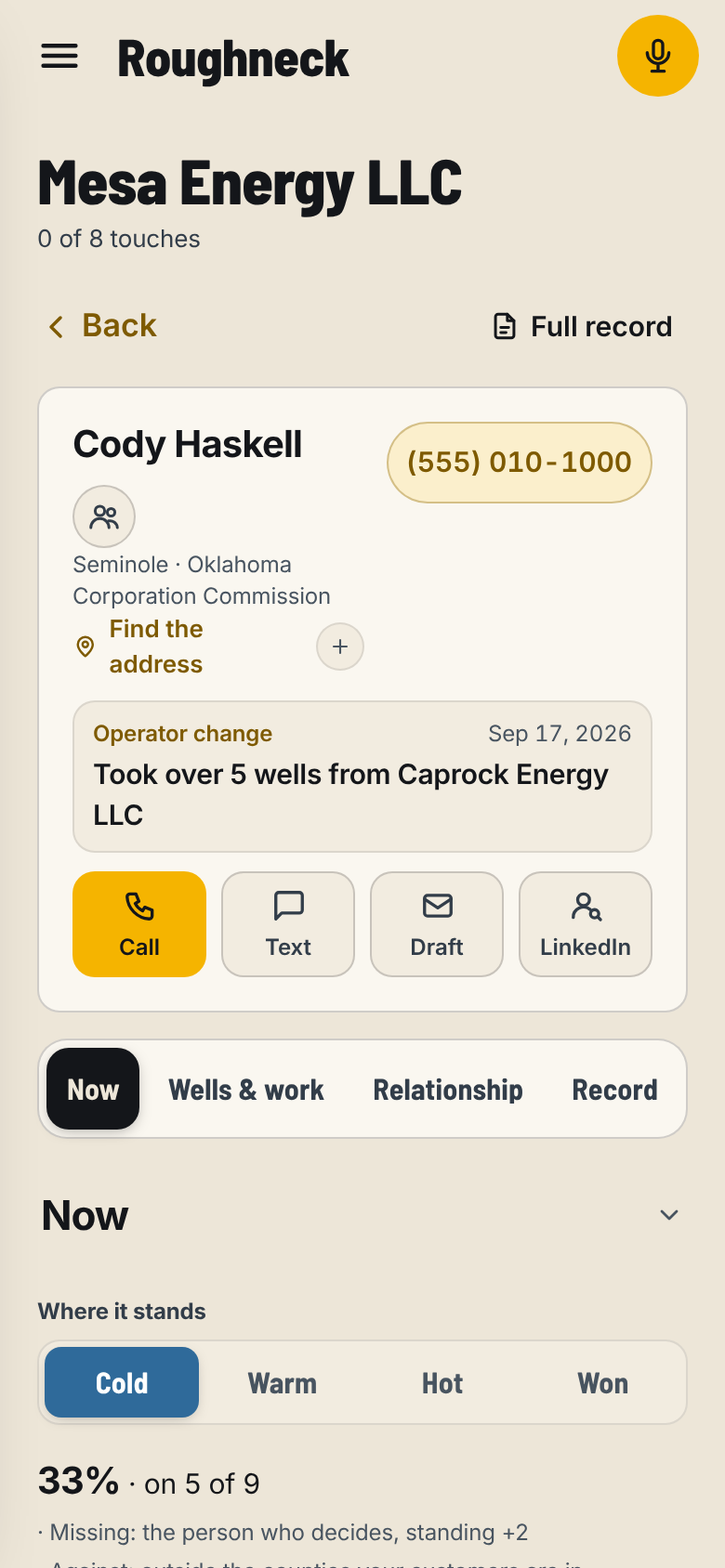
Where it stands is the line of four chips on every account, near the top of its card: Cold, Warm, Hot and Won, with the one it is at lit. Nobody sets it. It moves off what you logged.
What moves it
- Cold. Nobody reached yet.
- Warm. Somebody there took your call (Answered or Not their call), you visited, or you have answered two of the nine reads.
- Hot. A quote is out with them, a meeting is set or held, you gave them a number on a call, or five of the nine reads are answered.
- Won. They signed a quote or a field ticket, they agreed to a quote without signing, you put in the date their MSA runs to, or you brought them in as a customer. A won account moves into My Customers.
What moves it back
- Delete the quote it was won on, or clear the MSA date, and it goes back to where the rest of the work puts it. The history says why.
- Take a line off the account's History and it stops counting.
A deleted quote is not lost. A copy stays on the server; it just no longer counts.
Put an MSA date on an account
- Open the account, then The relationship.
- Under Paperwork, put in the date the MSA runs to.
The account moves to Won.
What you will not find here
- No stage you set by hand, and no drag between columns.
- No percent-to-close or forecast field.
- No Lost stage. A lost quote is marked lost; the account stays where its work puts it.
My Customers
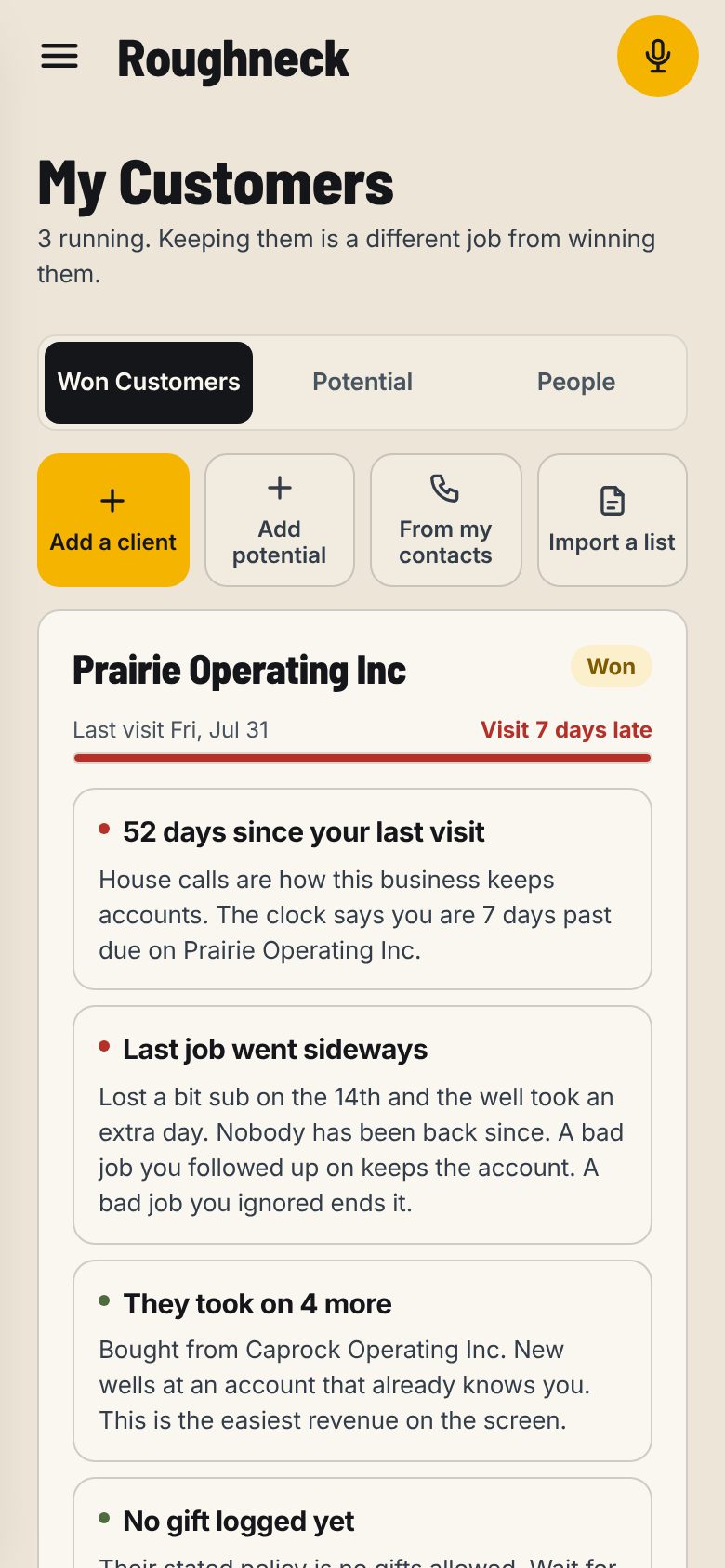
My Customers is the accounts you have won. Keeping them is a different job from winning them, so each one runs a visit clock, an MSA clock, a rate clock and a gift log on its own.
Bring your customers in
- Tap My Customers, then Import a list.
- Paste your list: one customer a line, with name, company, phone and email in any order. Or tap From my phone's contacts.
- Tap Read it. It shows what it found, and which ones are on the state record.
- Tap Save 12 to My Customers (the number is how many it found).
A line with no company is dropped. A customer already in your list is not added twice; a missing phone or email is filled in.
To add one by hand, tap Add a client.
Read a customer card
Each card shows the last visit and the visit clock (Visit in 12 days, Visit due today, Visit 5 days late), and the warnings: they sold wells or took on more, a visit or a gift is overdue, the MSA or the rates need attention, the last job went sideways. The ones that need you sort first.
Log a visit
- On the card, tap Log a visit.
- Pick When and Where, and write what came of it.
- Tap Log it.
The visit clock runs from the last visit, every 45 days unless you set Every two weeks, Monthly, Every six weeks or Quarterly on the account.
Keep the MSA and rate dates
- Open the customer, then The relationship, Paperwork.
- Put in MSA runs to and Rates last set.
Ninety days before the MSA runs out, the card warns you. A year after your rates were set, it tells you to go first.
Record a gift
- On the card, tap Gift.
- Write what you gave, who received it, roughly what it cost, and when.
- Tap Save the gift.
Set What their company allows on the account and the app warns you before you go over it.
What you will not find here
- No invoicing, payments or job costing.
- No renewal forecast.
Territory
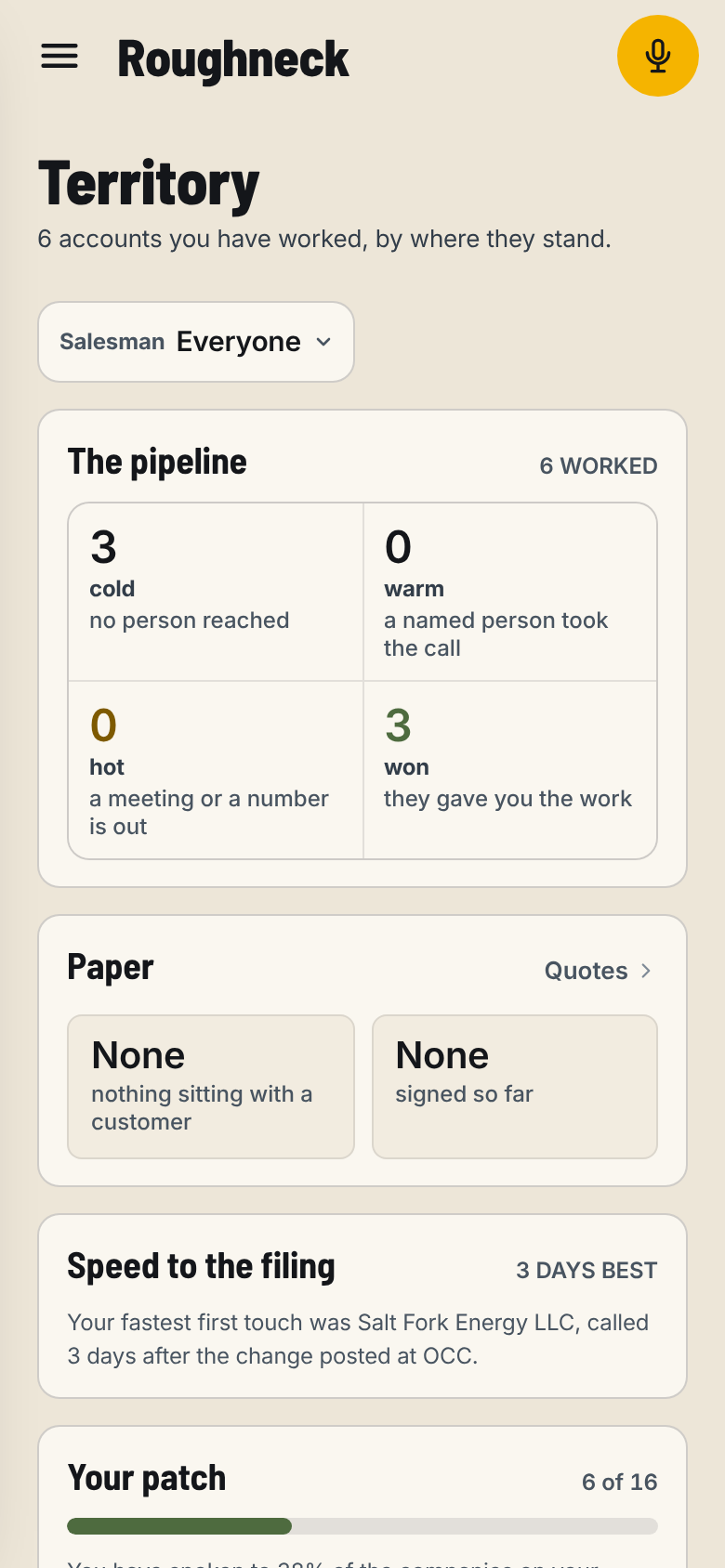
Territory is the shop's whole board: every account worked, by where it stands, the accounts going cold, your states and your map. Every seat sees it, so two people never call the same operator.
Read the board
- The first panel counts every account worked by cold, warm, hot and won. Tap one to open that list.
- Going cold lists up to six accounts with nothing for 21 days and no next step on them.
- Speed to the filing shows the fastest first calls after a filing.
- Your states lists your states and how many operators each has.
- Where your customers are lists the counties your customers' wells and filings are in.
- My Map shows the counties worked and the ones with filings nobody has touched. Tap a county to open Filings for it.
- The shop has the join code for your reps and Verify a document.
Look at one rep (owner only)
- Under Salesman, pick a rep.
- The stage counts and Going cold narrow to that rep. Everyone goes back.
What you will not find here
- No forecast, no quota and no leaderboard to fill in. The counts come off what was logged on calls.
Settings
Settings changes what the app does for you and, for the owner, for the shop. Open it from the three dots by your name, Settings.
Typed fields and dropdowns need Save at the foot of the screen; Discard throws the change away. Switches you tap take effect at once.
The tabs
- Your shop. Company name, What you sell, your shop's join code, Add a code, your logo, your states and Add a state. The owner and the sales leader change these; everyone else sees them.
- Your workday. Text size, Light or dark, Days off, Time zone, Cadence (Hard, Normal or Easy) and your Calling hours. Under How hard it pushes, What that means today spells out the days each call outcome waits.
- Notifications. Reminders on this phone (turn on, then pick the morning summary, meetings, ring-backs, events and signed quotes), what the bell in the app counts, and which emails you get.
- Quotes. Your shop's paperwork (cover letter, special provisions, terms and conditions, master service agreement), your saved signature, and what a new quote starts with.
- Competitors. The outfits your customers use instead of you, and the companies that run the drilling. Changes save the moment you make them.
- Paperwork. The networks you are on (ISNetworld, Avetta, Veriforce) and the dates that run out: insurance certificates, EMR letter, OSHA 300A. Your phone reminds you three weeks before each date and again the week of.
- Your data. What is on this device, Download your work, what Roughneck keeps and for how long, the app version, and Leaving.
- Tutorial. The short notes on each screen, On or Off. Take the walkthrough runs the tour again. Open the manual opens Help.
Change how hard the cadence pushes
- Settings, Your workday.
- Under How hard it pushes, tap Hard, Normal or Easy.
- Read What that means today for the days each outcome now waits.
Download your work
- Settings, Your data.
- Under Download your work, tap Download beside Calls, visits and notes, The people you added, Your customers or Your quotes. Each is a spreadsheet file.
The owner and the sales leader can always download. A rep can when the owner turns on Reps can download their work. The download is the work on the device you are using.
Sign out, wipe or delete
In Settings, Your data, under Leaving:
- Sign out. Your work stays on the server. If some of it has not reached the server yet, the app says so before it signs you out.
- Wipe this device. Clears everything stored in this browser. It cannot be undone.
- Delete my account. Your seat, your book and your sign-in are deleted from the server. Signed quotes and tickets are kept so your customers can still verify them. Your shop's shared records stay with the shop.
What you will not find here
- No field to add to a record type, and no form builder. The app has the fields it needs.
- No state picker. Your states come with your code.
- No user permissions grid. A seat is an owner, a sales leader, a rep or operations.
Help
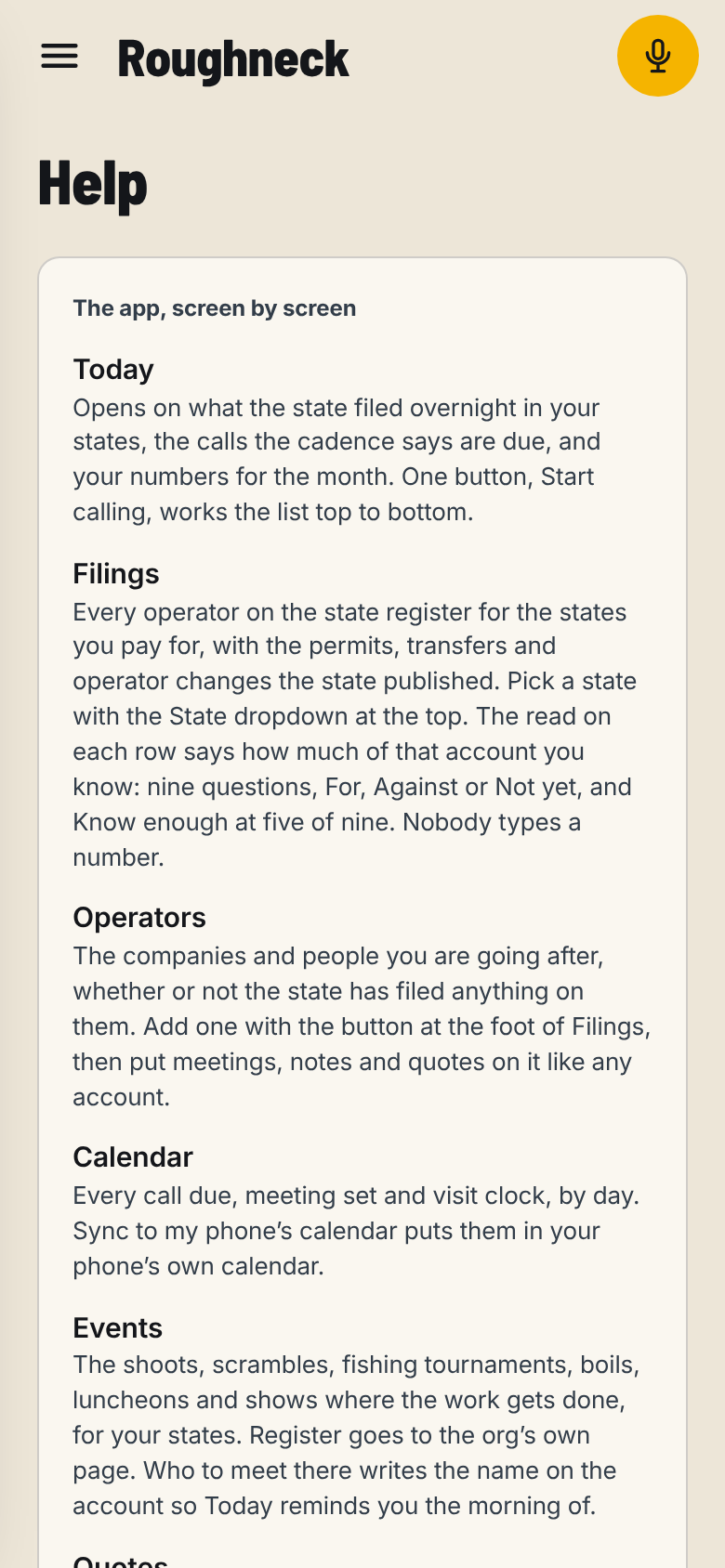
Help is the short manual inside the app, the questions people ask, and the way to reach us. Open it from the three dots by your name, Help.
Tell us what would make it better
- Three dots by your name, What would help? (or scroll to the foot of Help).
- Under What would make this better?, write one line.
- Tap Send it.
With no signal, your mail app opens with your note in it. Hit send there.
Email us
- On Help, tap Email connect@roughneckcrm.com.
- Say what you were doing and what you saw. Your shop and your app version are already in the subject.
A person reads every email.
What you will not find here
- No chat window and no ticket number. One box and one email address.
The Handshake
The Handshake is the add-on for a shop that wants its paper under its own name. The owner asks for it in Settings, Quotes, Ask us to turn it on.
What it changes
- Your logo and your shop's name head every quote and field ticket, and the Roughneck footer comes off.
- You can put the customer's logo on the document too (Add their logo). Use a logo they gave you.
- Ask for ID: before they sign, the customer shows a photo ID to Stripe Identity on their own phone. The quote shows ID confirmed with the name on the ID. Only the owner or a sales leader can turn the check off on a quote.
- Make it signable turns a quote you brought in from elsewhere into one you both sign in Roughneck.
- Field tickets: proof the work was done, signed on location.
What every shop gets without it
Building quotes, signing your side, the signing link, the customer signing on their phone, the audit trail and the Document ID. The paper says it was written in Roughneck.
Set what a new quote starts with
- Settings, Quotes.
- Under What a new quote starts with, pick How it gets paid, Good for, How you charge and Ask for ID.
Change any of them on a single quote without touching these.
The nine reads, and the number on every account
Before you price anything, there are nine things worth knowing about an account. The read tracks how many you know.
| Read | The question |
|---|---|
| Work | Have they got work coming? |
| Fit | Do they use what you sell? |
| Window | When is the next one? |
| Reason | Why would they switch? |
| Person | Who makes the call? |
| Standing | Do they know you? |
| Number | What are they paying? |
| Paper | Are you set up to work for them? |
| Cost | What will the first job take? |
Each read is For, Against or Not yet. Where the state record answers one, it is filled in for you. Each Not yet carries the question that settles it, and the script asks it on the call.
Where the number shows
- On the account card, under Now: a percent, how many reads are on, and what is missing.
- On the card, under The record: The read, with every question and the chips to answer it.
- On a Filings row, once you have worked the account: the percent read.
Answer a read
- Open the account, then The record.
- Under The read, tap the answer the call gave you. Your tap beats the record.
Against on Work or Fit says Not for you and shows no number. Fix it by setting Work or Fit to For if the record is wrong.
Know enough
An account is Know enough when five or more reads are settled and at least one of Person, Standing, Number or Paper is among them. On Filings, Know enough is a filter that lists those accounts. That is the moment to make your move.
Nothing is typed for the number. Won stops the read from counting toward a move.
Roughneck is made by Bootstrap Digital, Inc. (in formation), doing business as Roughneck.